HELP CENTRE

Tracking time in day view

The ‘Day View’ in Ponyrider makes it simple to record and review your work hours for each project. You can add, edit or start timers directly from your daily timeline -  keeping your timesheets accurate and up to date.

TL;DR - At a glance

  • check View all time entries for the current day
  • check Add new entries manually or use the timer
  • check Edit or delete entries in a few clicks
  • check Switch between Day and Week views easily

On this page

Understanding the day view
Adding a new time entry

Tracking time with the built-in timer
Editing or deleting an entry
Troubleshooting

Understanding the day view

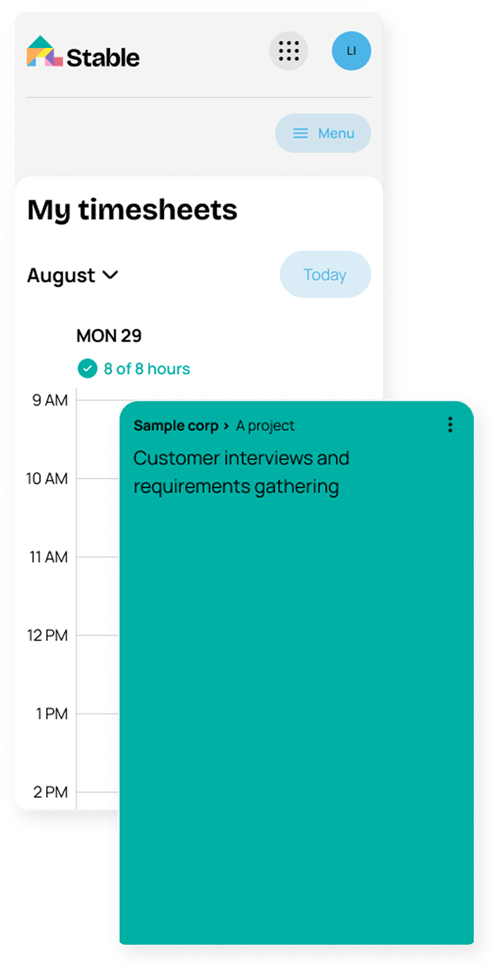
The Day View displays all hours recorded for a single day - grouped by project and task. Each entry shows:

What you'll get:

  • check Project and task name
  • check Time recorded
  • check Notes or descriptions
  • check Answers to integration or security questions.
  • check Status (Draft, Submitted, or Approved)
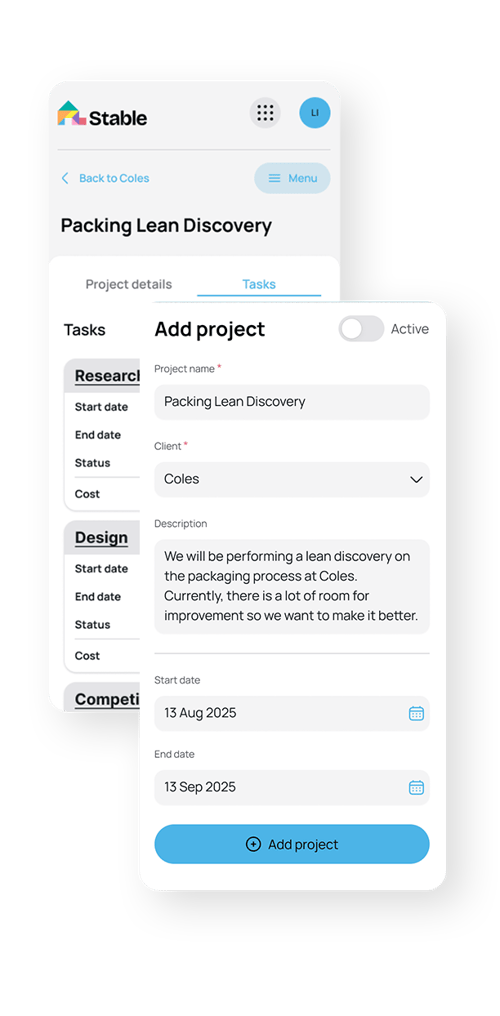
case-study-image-asset2
projects-screen-1

Adding a new time entry

  • check Project and task name
  • check Time recorded
  • check Notes or descriptions
  • check Answers to integration or security questions.
  • check Status (Draft, Submitted, or Approved)
Your entry now appears on the Day View timeline, colour-coded by project.

lightbulb

Tip: If you work across multiple projects, use the project filter above the timeline to focus on one client or team.

Tracking time with the built-in timer

Instead of entering hours manually, you can use the built-in timer:

  • check Click Start Timer when you begin a task.
  • check Ponyrider will automatically record elapsed time.
  • check Click Stop Timer when finished.
  • check Review or edit the entry before saving it.

Timers continue running even if you navigate away from the Day View (you’ll see a small active timer indicator in the top navigation bar).

lightbulb

Good to know: Only one timer can run at a time per user to maintain accurate logs.
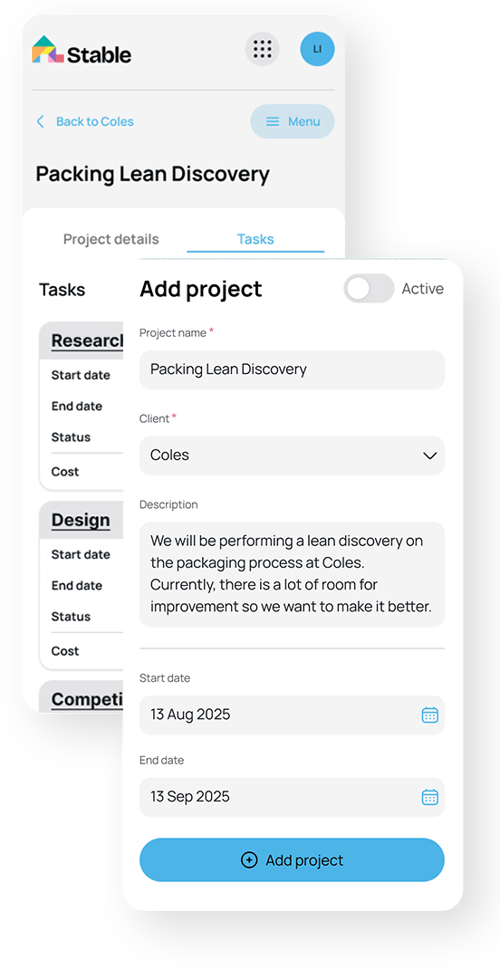
consultation-image-asset
projects-screen

Editing or deleting an entry

  • check Hover over any entry and click the edit (✏️) icon.
  • check Update your time, note, or project.
  • check To delete, click the trash (🗑️) icon in the same menu.

Your entry now appears on the Day View timeline, colour-coded by project.

Switching to Week View

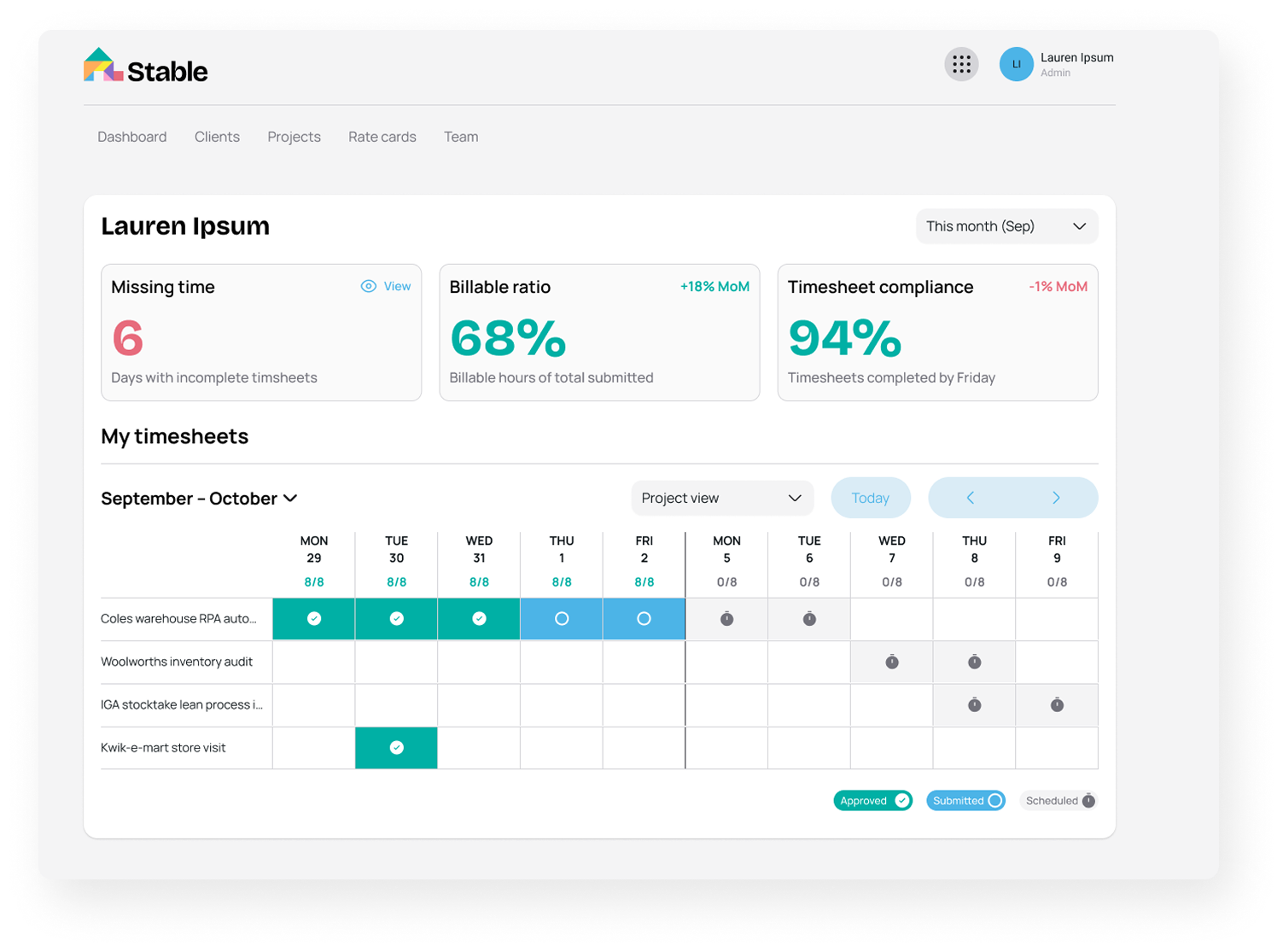
Click the “Week View” toggle at the top right to see a summary of all logged hours by day.

This helps you review weekly totals or confirm you’ve submitted all timesheets on time.

Timers continue running even if you navigate away from the Day View (you’ll see a small active timer indicator in the top navigation bar).

consultation-image-asset

Troubleshooting

Can’t start a timer?

  • Make sure you don’t have another timer running.
  • Refresh your browser if you recently updated your project list.

Accidentally logged time to the wrong project?

  • Edit the entry and reassign the correct project -  the update will reflect automatically in reporting.

Missing hours in Week View?

  • Check filters at the top of the page - make sure all projects and statuses are visible.

Did you find this article helpful?

Yes No

Still have question?