
The Users tab is your central hub for managing your team’s access and roles. From here, you can track seat availability and monitor the onboarding status of your invited members.
User Directory
At the top of the page, Ponyrider displays your current utilisation (e.g., 6 of 7 seats available).
- Adjusting Seats: If you need to add more team members beyond your current limit, click the Adjust seat link to update your subscription.
User Actions
There are a few actions that can be performed by the Admin when it comes to managing the users.
| Field | Description |
|---|---|
| Add New User | Click the Add new user button to invite a new team member. |
| Send/Resend Invite | For users in Pending status, use the Resend invite action to trigger a new onboarding email. |
| View | Click View to open a detailed profile and modify specific user settings or roles. |
Invite new user
Adding team members to Ponyrider is a two-step process: an admin issues an invitation, and the user completes their profile setup via the link sent to their email.
The Invitation Workflow
- Once the admin clicks Invite Users, the system sends a secure link to the recipient's inbox.
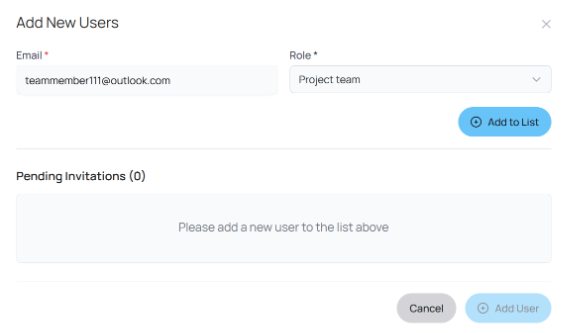
Figure: Invitation email received by a new user with the Accept Invitation button.
- The user locates the email from Ponyrider and clicks the Accept Invitation button.
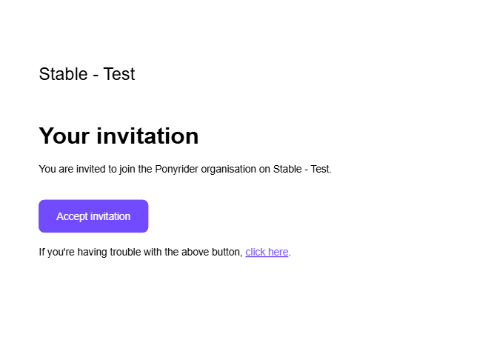
Figure: Signup page where an invited user sets their password to complete account registration.
- The user is redirected to a secure signup page to set their password and complete their profile.
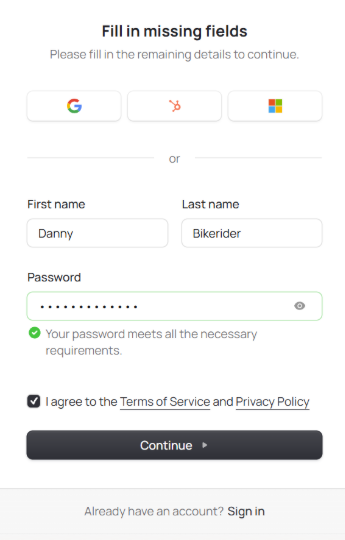
Figure: Profile setup screen completed by the invited user after accepting the invitation.
- Once setup is complete, the user is granted immediate access to the workspace using the permissions selected by the admin.
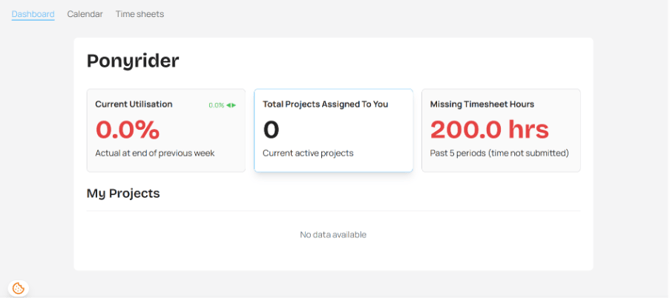
Figure: New team member's workspace view after accepting an invitation and completing profile setup.
Managing Pending Invites
If a user has not yet joined the platform, their status will remain as Pending in the Users table.
Resend Invite: If the user cannot find the original email, use the Resend Invite action in the Users table to issue a fresh link.
-
- Tip: Encourage users to check their Junk or Spam folders if the invitation does not arrive within a few minutes.
User details
The User Details page allows administrators to configure specific parameters for an individual team member. This includes their role, internal cost rates, and department assignments.
| Field | Description |
|---|---|
| Full Name | The user's name. |
| The unique identifier used for login. This field is mandatory. | |
| Mobile / Phone | Optional contact numbers for internal team records. |
| Role | The permission level assigned to the user (e.g., Admin, Project Manager). |
| Cost (Hourly) | The internal hourly rate for the user. Used for utilisation calculation, forecast, revenue maths. Can be derived from daily cost based on an 8-hour day. |
| Cost (Daily) | The internal daily rate for the user. Used for utilisation calculation, forecast, revenue maths. Can be derived from hourly cost based on an 8-hour day. |
| Start / End Date | The user's active window within your organisation. |
User Department & Role
Use these dropdowns to categorize your team for streamlined reporting and resource management.
- Department & Role Assignment: Assign users to specific teams (e.g., Marketing Department) and titles (e.g., Marketing Manager) to help filter utilisation reports and track resource allocation.
- See more in Departments
- Rate Card Integration: By selecting a specific role, Ponyrider can automatically assign a default cost based on your predefined Rate Cards. This eliminates manual entry errors and ensures your project profitability tracking remains consistent across the organisation.
- See more in Rate cards
Working Hours & Holidays
- Use Organisation Default:
- When toggled ON, the user will follow the global holiday calendar and work hours set in Settings > General.
- Toggle these OFF if a specific user has unique working days (e.g., part-time) or follows a different holiday calendar (e.g., an international contractor).
- When toggled OFF, a Holiday Calendar dropdown appears. Select the regional calendar that matches this staff member’s location. Only calendars added in Settings > General > Holidays will appear. Click Update User to save the assignment.
- See how working hours, holidays, and rate cards drive Utilisation.
Administrative Actions
- Revoke User: Use this button to immediately remove the user's access to the workspace. This will free up a user seat. You can’t revoke a primary admin.
- Update User: Click this to save any changes made to the profile.
Revoking user access
Managing access is a core security control in Ponyrider. When a member departs your organisation, their access can be removed immediately while preserving their historical time logs and project data so reporting and billing remain accurate.
- Go to Settings > Users and click View next to the team member you wish to remove.
- Click the Revoke User button at the bottom of the User Details page.
- Confirm the action. The user’s access is removed immediately and their seat is freed up. The Primary Admin cannot be revoked.
Next: Billing