
Organisation Settings define how Ponyrider behaves across the workspace. Settings are grouped into three tabs: General, Project, and Invoice.

Figure: Settings navigation bar showing the General, Project, and Invoice configuration tabs.
Business Information
Navigate to Settings > Business Info. Click Edit Business Information to update your organisation's details — these pre-fill your quotes and invoices.
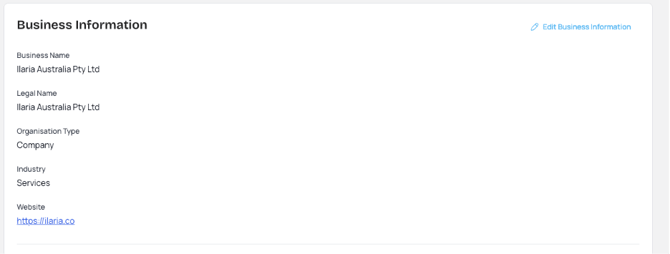
Figure: Business Information panel showing organisation name, address, and primary contact details.
| Field | Description |
|---|---|
| Business Name | Your public-facing workspace name. |
| Legal Name | Your registered entity name for tax and legal purposes. |
| Organisation Type | Legal structure (e.g., Company, Sole Trader). |
| Industry | Your primary business sector. |
| Website | Your company URL. |
Your Address appears on invoices as your "from" address. Click Edit Address to update it. The Contacts section shows the Primary Admin. There must always be at least one Primary Admin.
General Settings
Navigate to Settings > General.
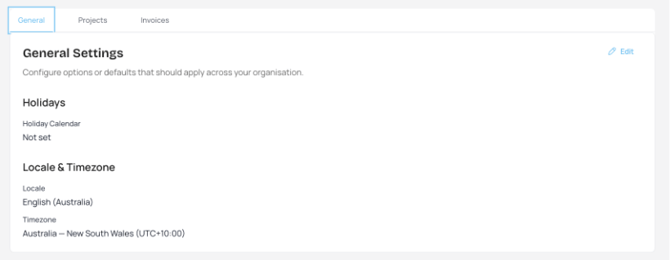
Figure: General Settings panel showing holiday calendar, locale, and timezone configuration.
| Section | Field | Description |
|---|---|---|
| Holidays | Holiday Calendar | Add regional holiday calendars (e.g., Australia — New South Wales). Once added, calendars can be assigned to individual staff members. |
| Locale & Timezone | Locale | Determines date, number, and currency formatting (e.g., English - Australia). |
| Locale & Timezone | Timezone | Sets the local time for your workspace, ensuring timesheet entries are correctly timestamped. |
Click Save Changes after updating. These are global defaults — individual working hours and holiday calendars can be overridden per staff member in Users settings.
Project Settings
Navigate to Settings > Project. Click Edit to modify values.
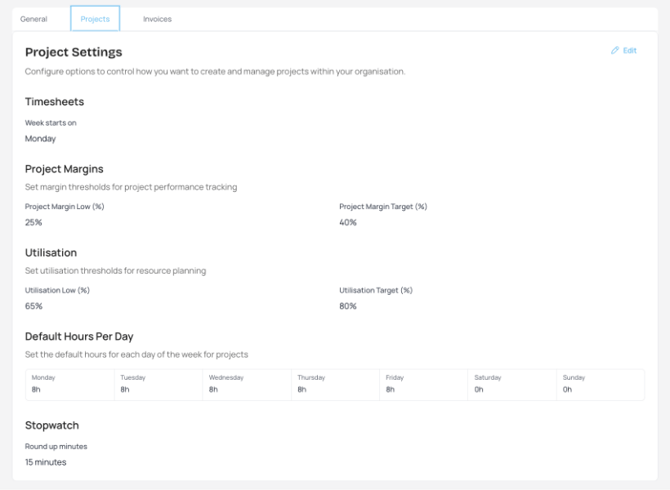
Figure: Project Settings panel showing timesheet cycle, project margins, utilisation targets, default hours, and stopwatch rounding.
| Section | Field | Description |
|---|---|---|
| Timesheets | Week Starts On | Sets the first day of the work week for all timesheet cycles and reporting. |
| Project Margins | Project Margin Low (%) | The minimum profit threshold your organisation tolerates. |
| Project Margins | Project Margin Target (%) | The ideal profit margin your organisation aims to achieve per project. |
| Utilisation | Utilisation Low (%) | Minimum billable work percentage. Helps identify under-allocated team members. |
| Utilisation | Utilisation Target (%) | Target billable efficiency for your team (e.g., 80%). |
| Default Hours | Monday – Sunday | Standard daily capacity per day. Days set to 0 are excluded from automatic forecasting. |
| Stopwatch | Round Up Minutes | Minimum Stopwatch session duration. Sessions shorter than this value are automatically rounded up when saved. |
Invoice Settings
Navigate to Settings > Invoice.
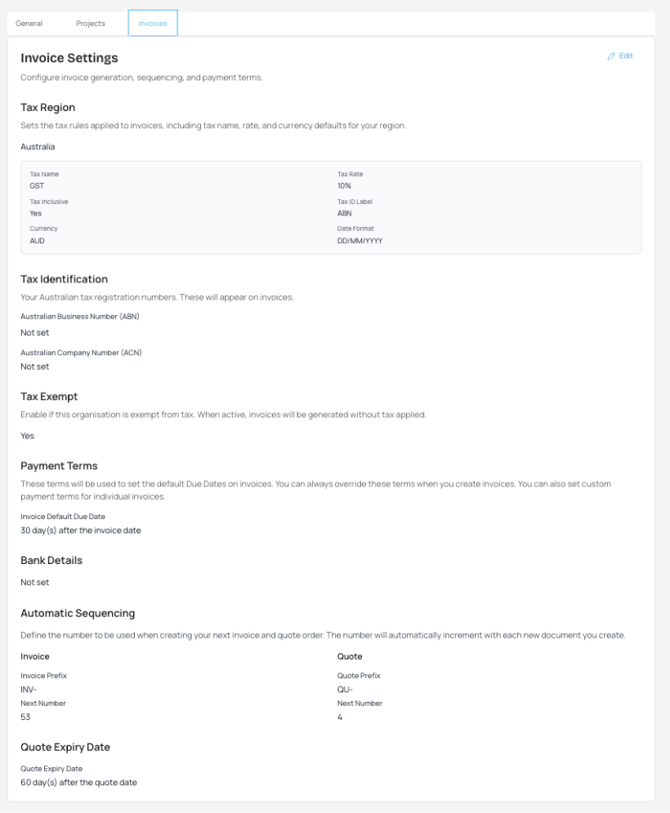
Figure: Invoice Settings panel showing payment terms, bank details, document numbering prefix, and quote expiry defaults.
| Section | Field | Description |
|---|---|---|
| Tax | Tax Region | Defines the tax jurisdiction for invoice tax rates and labels. Must be configured before any invoice can be created. |
| Tax | Tax Exempt | When enabled, invoice totals are calculated without tax. |
| Payment Terms | Invoice Default Due Date | Standard payment window (e.g., 30 days). Automatically calculates the due date on new invoices. |
| Bank Details | Bank Details | Official banking information. Automatically appended to invoices. |
| Automatic Sequencing | Invoice/Quote Prefix | Custom text string starting document numbers (e.g., INV-). |
| Automatic Sequencing | Next Number | Starting integer for the next document. Increments by +1 for each new invoice or quote. Can be overridden. |
| Quote Expiry | Quote Expiry Date | Default duration a quote remains valid (e.g., 60 days). |
Holiday Calendars
Holiday calendars ensure project forecasting and utilisation calculations exclude public holidays. Without a calendar assigned, Ponyrider cannot distinguish a public holiday from a regular working day.
Adding a regional calendar
- Go to Settings > General and scroll to Holidays.
- Use the Filter by Country selector to find the region (e.g., Australia — New South Wales).
- Click Add. Repeat for each region, then click Save Changes.
Assigning a calendar to a staff member
- Go to Settings > Users and click View next to the staff member.
- Under Working Hours & Holidays, toggle Use Organisation Default OFF.
- Select the calendar from the Holiday Calendar dropdown and click Update User.
Adding custom holidays
Click Add Holiday in the top-right corner of the Holidays tab to manually add a date (e.g., a company picnic day or regional bank holiday).
Integrations
Xero
Connect Ponyrider to Xero to sync invoices and customer details automatically.
- Go to Settings > Integrations and click Connect in the Xero module.
- Authorise Ponyrider in Xero. You will be returned with status updated to Connected.
QuickBooks and MYOB integrations are coming soon.
Next: Users