
The Users tab is your central hub for managing team access and roles.
Inviting a New User
- Click Add New User in the Users tab.
- Ponyrider sends a secure invitation link to the recipient's email.
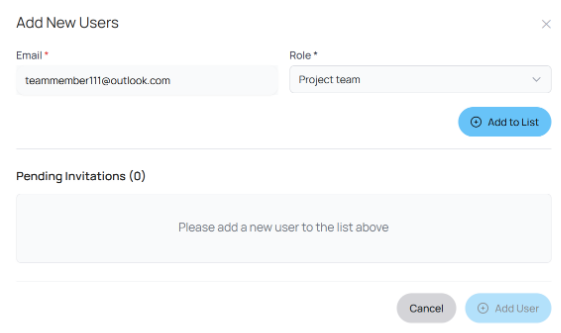
Figure: Invitation email received by a new user with the Accept Invitation button.
- The user clicks Accept Invitation and is redirected to a signup page to set their password.
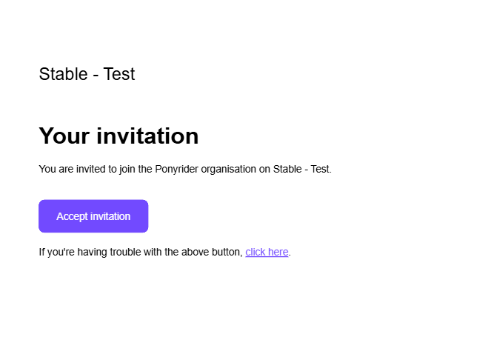
Figure: Signup page where an invited user sets their password to complete account registration.
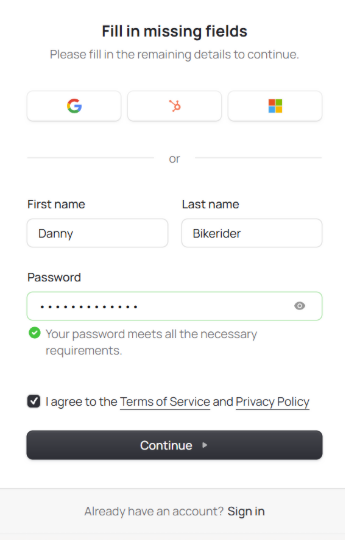
Figure: Profile setup screen completed by the invited user after accepting the invitation.
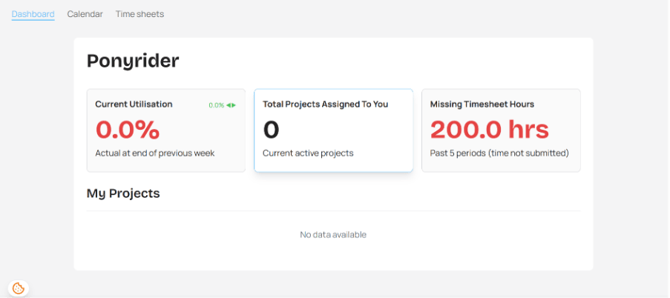
Figure: New team member's workspace view after accepting an invitation and completing profile setup.
If a user cannot find the original email, use Resend Invite in the Users table. Encourage users to check their junk or spam folders.
User Details
Click View next to a user to open their profile.
| Field | Description |
|---|---|
| Full Name | The user's display name. |
| Unique login identifier. Cannot be changed by the user — contact an Admin for a new invitation if the email address changes. | |
| Mobile / Phone | Optional contact numbers. |
| Role | Permission level (e.g., Admin, Project Manager). |
| Cost (Hourly) | Internal hourly rate for utilisation calculations and forecasting. |
| Cost (Daily) | Internal daily rate. Derived from hourly cost based on an 8-hour day. |
| Start / End Date | The user's active window within your organisation. |
Department & Role assignment
Assign users to a department and role for reporting and resource tracking. Selecting a role allows Ponyrider to automatically assign a default cost from your Rate Cards.
Working hours & holidays
- Use Organisation Default ON: The user follows global holiday calendar and work hours from Settings > General.
- Use Organisation Default OFF: A Holiday Calendar dropdown appears. Select the regional calendar for the staff member's location, then click Update User.
Revoking User Access
- Go to Settings > Users and click View next to the team member.
- Click Revoke User at the bottom of the User Details page and confirm.
The user's access is removed immediately and their seat is freed up. Historical time logs and project data are preserved. The Primary Admin cannot be revoked.
Roles and Permissions
| Permission | Primary Admin | Admin | Project Finance | Project Manager | Project Team |
|---|---|---|---|---|---|
| Manage organisation settings | ✔ | ✔ | ✘ | ✘ | ✘ |
| Revoke lower user access | ✔ | ✔ | ✔ | ✔ | ✘ |
| Can have access revoked | ✘ | ✔ | ✔ | ✔ | ✔ |
| Create/approve invoices | ✔ | ✔ | ✔ | ✘ | ✘ |
| Approve team timesheets | ✔ | ✔ | ✘ | ✔ | ✘ |
| View organisational utilisation dashboard | ✔ | ✔ | ✘ | ✘ | ✘ |
| View projects dashboard | ✔ | ✔ | ✘ | ✔ | ✘ |
| View finance dashboard | ✔ | ✔ | ✔ | ✘ | ✘ |
| View project manager dashboard | ✔ | ✔ | ✘ | ✔ | ✘ |
| View personal dashboard | ✔ | ✔ | ✔ | ✔ | ✔ |
- Primary Admin: The "Super User" who owns the workspace. Cannot have access revoked.
- Admin: Near-total control, including financial settings and user management.
- Project Finance: Can manage Rate Cards, Quotes, and Invoices. Cannot change global organisation settings.
- Project Manager: Can start projects, assign members, and approve team timesheets.
- Project Team: Standard access — can log time via Calendar or Timesheets and access personal dashboard.
Security
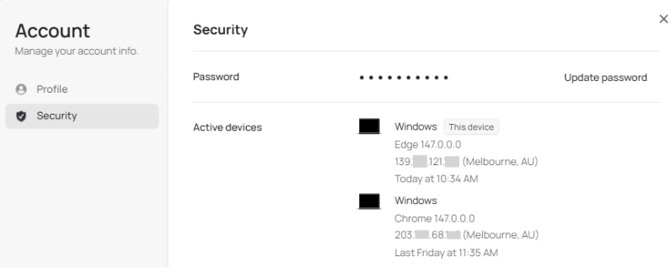
Figure: Security tab showing active sessions and account credential management options.
The Security tab shows all active sessions where your account is currently logged in. If you see an unrecognised login, update your password immediately via Update Password.
Billing
| Plan | Best For |
|---|---|
| Free | A free 30-day trial for users exploring the platform. |
| Pro | Growing businesses requiring full project and invoice automation. |
| Enterprise | Larger organisations with custom needs. Contact Us to discuss. |
Supported payment methods: credit card, debit card, Pay Link. To cancel, click Cancel Subscription at the bottom of the Billing page.
Next: Sign out