
Use the Quotes tab to define pricing and terms for a client before work begins. Ponyrider generates a polished PDF quote to send to clients.
Create a New Quote
- Click Create New Quote from the main Quotes screen.
- Provide a Reference number and select the Contact (Client). If no clients appear, create the client profile in the Clients section first.
- Set Issue and Expiration dates.
- Select the Currency and Taxation settings for the client's region.
- Add custom Terms & Conditions — this text is printed directly on the PDF.
- Click Create Quote to save as a Draft.
Edit and Finalise a Quote
- From the Quotes list, click View then Edit Quote.
- Click Add Row to add a line item. Fill in Item, Qty, and Price — Amount is calculated automatically.
- Click the red Trash icon on any row to remove it.
- Review the Subtotal and Total at the bottom right.
- Click Save Quote, then Download PDF to export.
Quote Statuses
| Status | Description |
|---|---|
| Draft | Default state. Line items can be added, edited, or removed. |
| Approved | Click Approve once agreed with the client. Locked against further edits and serves as the confirmed scope of work. |
Quote Document Example
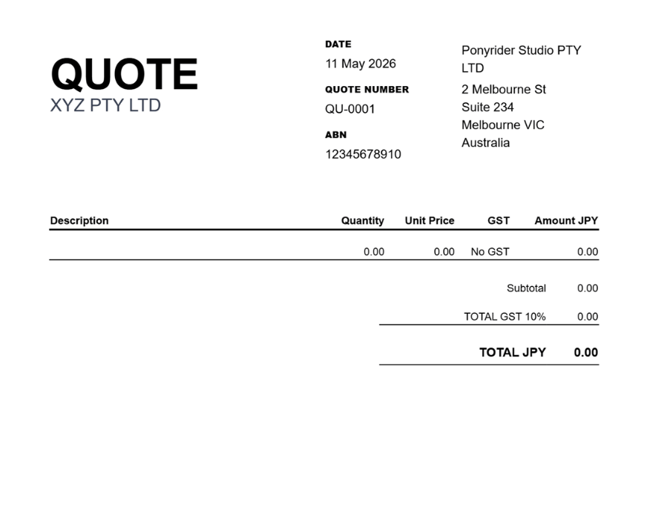
Figure: Quote document output showing scope line items, terms, and expiry date for client review.
| Element | Description |
|---|---|
| Tax ID / ABN | Client tax identifier label for the selected tax region (e.g., ABN in Australia, VAT Registration Number in VAT regions). |
| Currency | All values display in the currency selected when the quote was created, regardless of the organisation's default currency. |
| Unit Price | Displays with the correct currency symbol or code (AUD, USD, EUR, GBP, JPY, etc.). |
| Tax Label and Calculation | Regional tax label and amount (e.g., GST in Australia, VAT in VAT regions). Calculated per regional rules. |
| Amount | Final line amount after quantity, unit price, and tax treatment are applied. |
Next: Invoices