
Projects are the primary containers for tracking tasks, time, and billing. Every project must be associated with a client.
Create a New Project
- Navigate to Projects and click Add a Project.
- Fill in Name, select the Client, and provide a Client Reference.
- Set Start and End Dates.
- Optionally assign a Project Manager.
- Configure the three project flags (see below).
- Click Start Project when ready — state changes to IN PROGRESS and the project becomes available for time entry.
Video: Add a new project
Project Flags
| Flag | ON | OFF |
|---|---|---|
| Billable Project | Approved time can be invoiced. Hours appear in the Billable line of the Utilisation Dashboard. | Project cannot be invoiced. Hours are tracked but treated as non-billable. Useful for internal or pro-bono work. |
| Timesheets Need Approval | Submitted time must be approved by a Project Manager before invoicing. | Submitted time can be invoiced without a separate approval step. |
| Utilisation | Hours logged count toward staff utilisation calculations. | Time is recorded but excluded from utilisation figures. Suitable for admin, training, or leave projects. |
Assign Project Members
- From the project, click Add Member.
- Select the staff member and complete the task name, date range, hours, and billing rate fields.
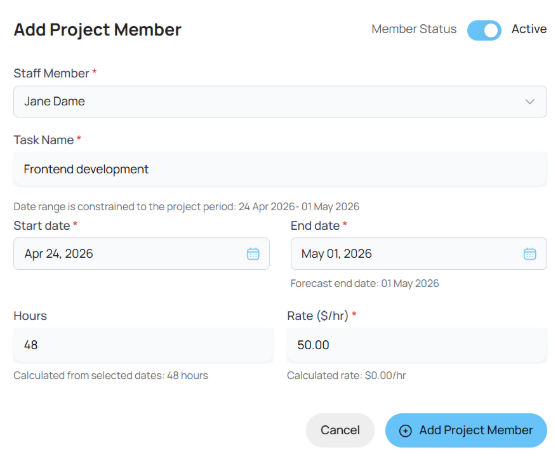
Figure: Add Project Member form showing staff member, task name, date range, hours, and billing rate fields.
Auto-populated billing rate: All three conditions must be met for the rate to auto-fill:
- The staff member has a role in a department (Settings > Users).
- That department role has a rate in a rate card (Rate Cards).
- That rate card is assigned to the client (Clients).
You can override the rate per member without affecting the rate card. If the rate field is blank, check the rate card, client assignment, or the staff member's department role.
Add Milestones
Click Add Milestone to define staged billing or delivery points. Milestones can be selected as invoice lines when billing by stage or completion.
Project Screen Tabs
Project Summary
The headline view — KPI cards (Hours Allocated, Used, Remaining, Days Remaining), Hours Burndown chart, Financial bar (Budget / Paid / Awaiting Payment / Draft / Remaining), team allocation, and milestone summary.
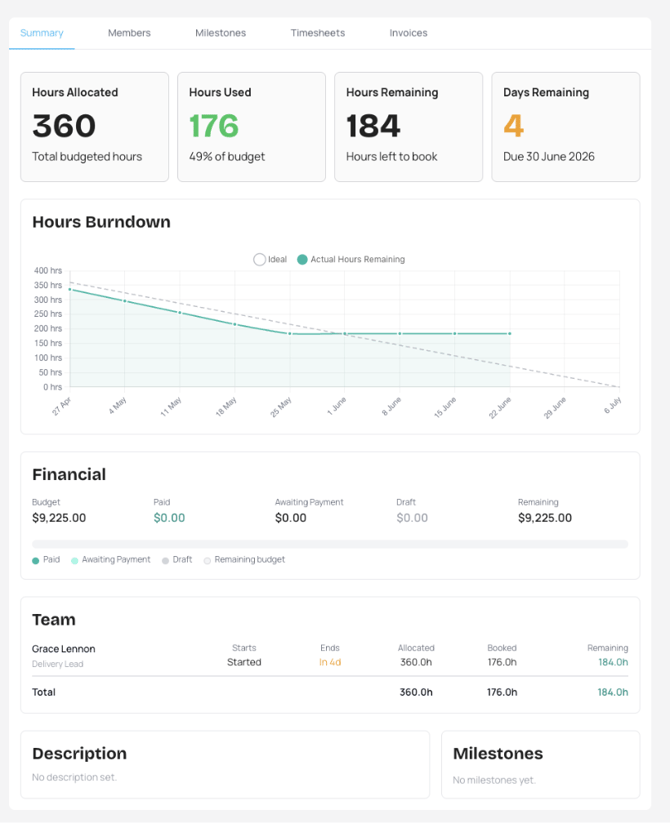
Figure: Project Summary tab showing KPI cards, burndown trend, financial progress, team allocation, description, and milestone summary for the selected project.
Members
Lists active and inactive project members with task, rate, hours, amount, and status columns. All columns are sortable.
Figure: Members tab showing active and inactive project members, including task, rate, hours, amount, and status columns.
Milestones
Shows project billing milestones, completion percentage, and milestone state.
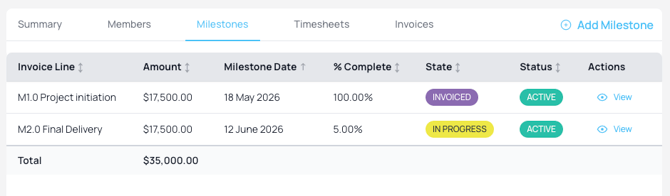
Figure: Milestones tab showing project billing milestones, completion percentage, and milestone state for staged delivery or milestone-based invoicing.
Timesheets (project-specific)
Review, filter, approve, reject, and export time for this project only. The Calendar view is not available here — it is only in the standalone Timesheets screens.
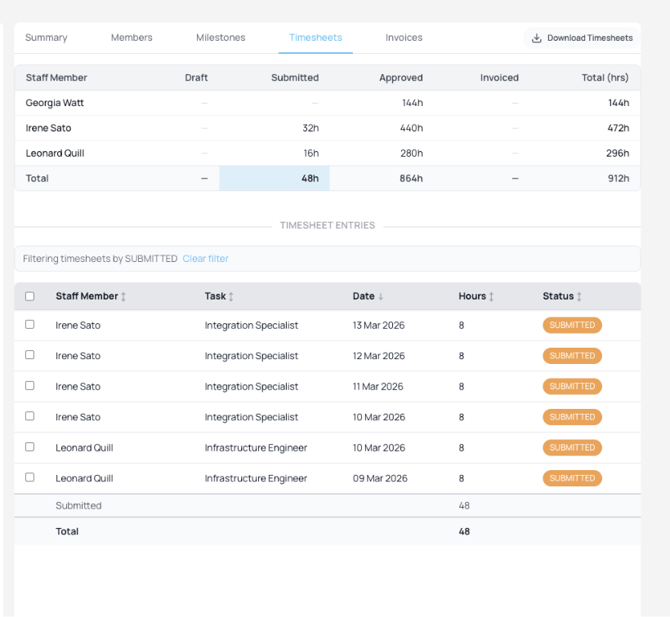
Figure: Project Timesheets tab showing project-linked time entries, including review, filtering, approval, rejection, and export actions.
Invoices (project-specific)
Shows invoices linked to this project only. Displays invoice number, project/client details, invoice date, due date, amount, and current state.
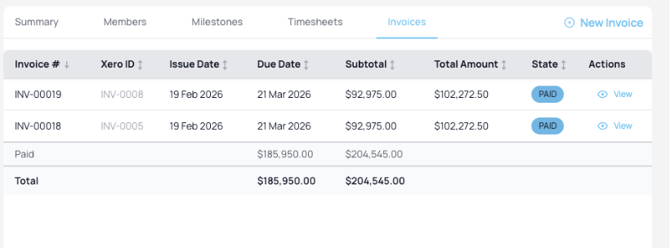
Figure: Project Invoices tab showing invoices linked to the selected project, including invoice number, project/client details, dates, amount, and current state.
Next: Timesheets