
The Invoices screen is the final stage of the operational workflow. Use it to generate billing documents, track payment deadlines, and monitor financial health.
Access: Admin users can view all invoices across the organisation. Project Managers can view invoices for the projects they manage.
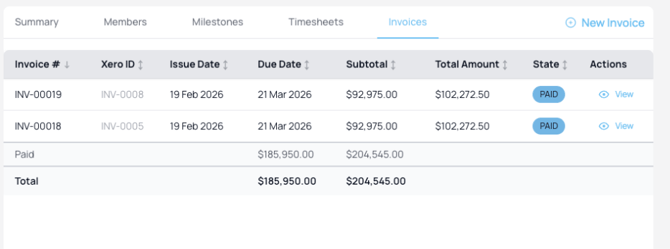
Figure: Invoices list showing invoice records across projects with status, amount, and date columns.
Before You Begin
Invoices cannot be created until the organisation has a Tax Region configured. If this has not been set up, a blocking message will appear. Go to Settings > Invoice to configure your tax region.
Create a New Invoice
- Navigate to Invoices and click Create New Invoice.
- Select the Client and then the specific Project.
- Set the From and To dates to define the work period.
- In the Timesheets tab, use checkboxes to include or exclude specific time entries.
- In the Milestones tab, select any milestones to include.
- Review all line items and the grand total in the Invoice Lines tab.
- Click Create Invoice to finalise.
Note: Once an invoice is created, Ponyrider locks the associated timesheet entries to prevent duplicate billing.
Video: Create an invoice
Invoice Features
- Tax Inclusive toggle per line: Each invoice line item can independently be set as tax inclusive or exclusive.
- Tax amount displayed: The invoice shows the actual tax amount (e.g., $45.00 GST), not just the rate.
- Tax Region required: A tax region must be configured before any invoice can be created.
Invoice States
| State | Description |
|---|---|
| Draft | Created but not yet sent. Line items can still be edited or removed. |
| Awaiting Payment | Issued to the client, payment pending. Associated timesheet entries are locked. |
| Paid | Payment received, invoice is closed. Contributes to the Paid value on the Project Summary financial bar. |
| Remaining | The portion of the project budget not yet invoiced. Updates automatically as invoices are raised and paid. |
Invoice Summary Dashboard
The Invoice Summary provides a high-level view of your organisation's billing. Use it to monitor unbilled work and ensure all completed projects have been invoiced for the selected period.
How to use it
- Set your Start and End Dates (e.g., the previous calendar month).
- Review the Projects with Uninvoiced Amounts list.
- For any project showing a balance, click Create Invoice in the Actions column — the wizard opens pre-populated with outstanding items.
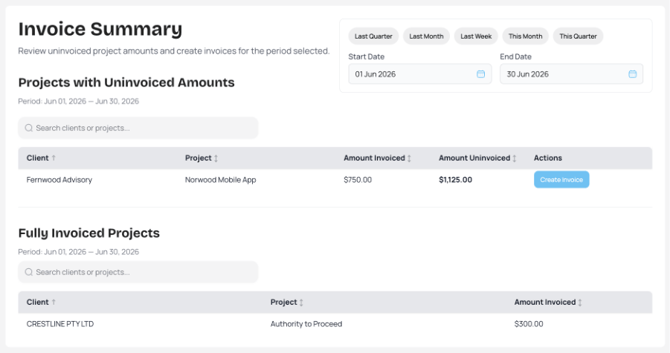
Figure: Invoice Summary dashboard showing projects with uninvoiced amounts and fully invoiced projects for the selected billing period.
The dashboard shows two categories:
- Projects with Uninvoiced Amounts: Approved timesheets or milestones not yet billed.
- Fully Invoiced Projects: Projects where all billable work for the period has been invoiced, providing a clear audit trail.
The primary goal is to ensure the Amount Uninvoiced column is cleared at the end of every billing cycle.
Invoice Example
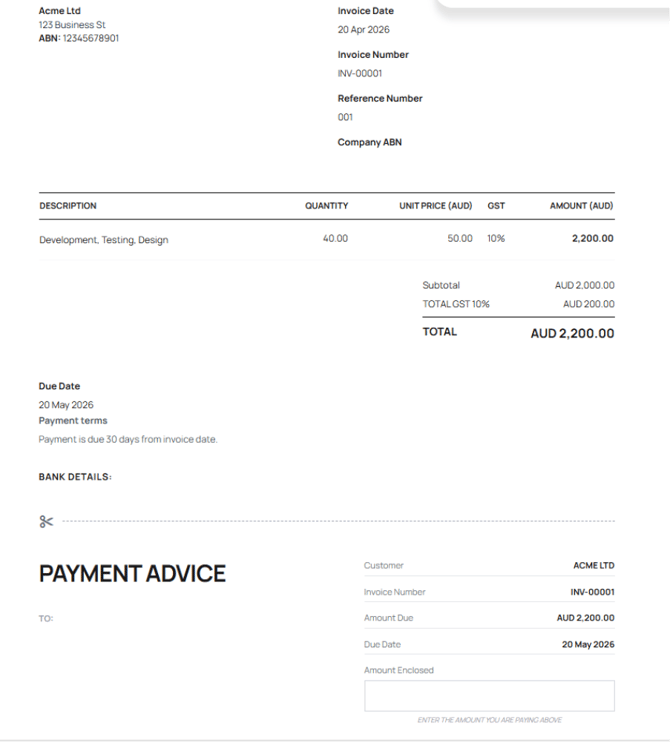
Figure: Tax invoice document output showing line items, GST calculation, and payment details.
| Element | Description |
|---|---|
| Tax ID / ABN | Client tax identifier label for the selected region (e.g., ABN in Australia, VAT Registration Number in VAT regions). |
| Company Tax ID / ABN | The issuing organisation's tax identifier (e.g., Company ABN in Australia). |
| Unit Price (Currency) | Displays in the selected invoice currency (AUD, USD, JPY, etc.). |
| Tax Label | Regional tax label and amount (e.g., GST in Australia, VAT, Sales Tax). Calculated per regional rules. |
| Amount (Currency) | Final line amount after tax treatment (inclusive or exclusive) is applied. |
Next: Account Management